Documentation
Roles & Permissions
Every user has exactly one role, set when they're invited. Roles are assigned per organization, not per location — but access to specific locations is controlled separately in Team access.
Roles at a glance
Organization Admin
Full access, including organization-wide settings.
- Everything below, plus
- Manage organization settings, locations, departments, and integrations
- Invite and manage team members
Operations Admin
Runs day-to-day hiring and workforce operations.
- Read and write Jobs, Candidates, and Employees
- Access Interviews and the HR Audit
- View operational settings (Locations, Departments, Integrations)
Hiring Manager
Owns hiring for their assigned locations.
- Read and write Jobs and Candidates
- Read Employees
- Schedule interviews and access the HR Audit
Viewer
Read-only access to hiring and workforce data.
- Read Jobs, Candidates, and Employees
- No Interview scheduling access
- HR Audit access only if an admin has enabled it for that viewer
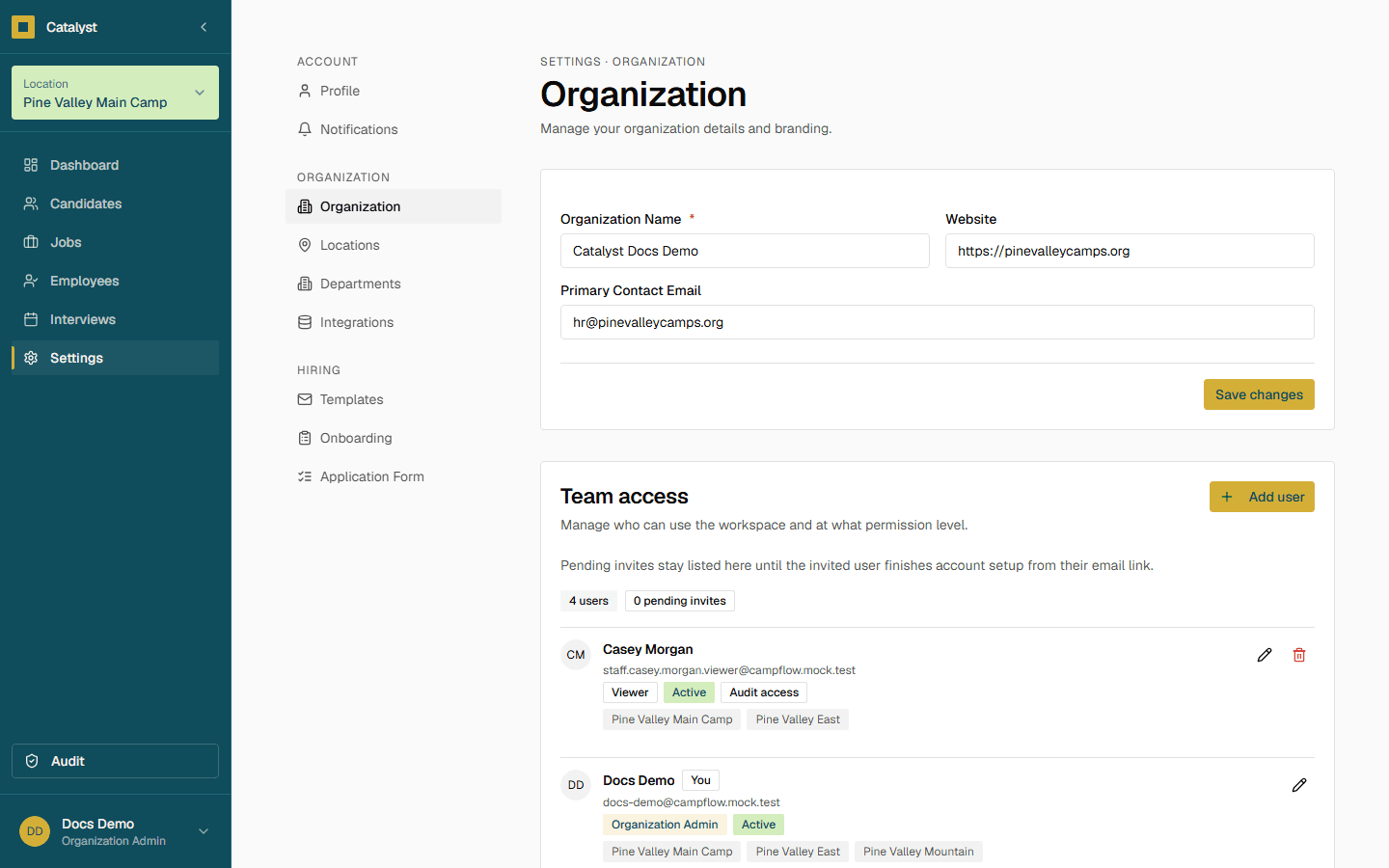
Changing a teammate's role
Go to Settings → Organization → Team access, find their row, and update their role. Changes apply the next time they load the app.
Heads up
Only an Organization Admin can grant Organization Admin access to someone else.