Documentation
Interviews
Schedule interviews from a candidate's profile and collect structured feedback afterward.
Schedule & feedback
The Interviews page in the sidebar shows every upcoming and past interview across your organization.
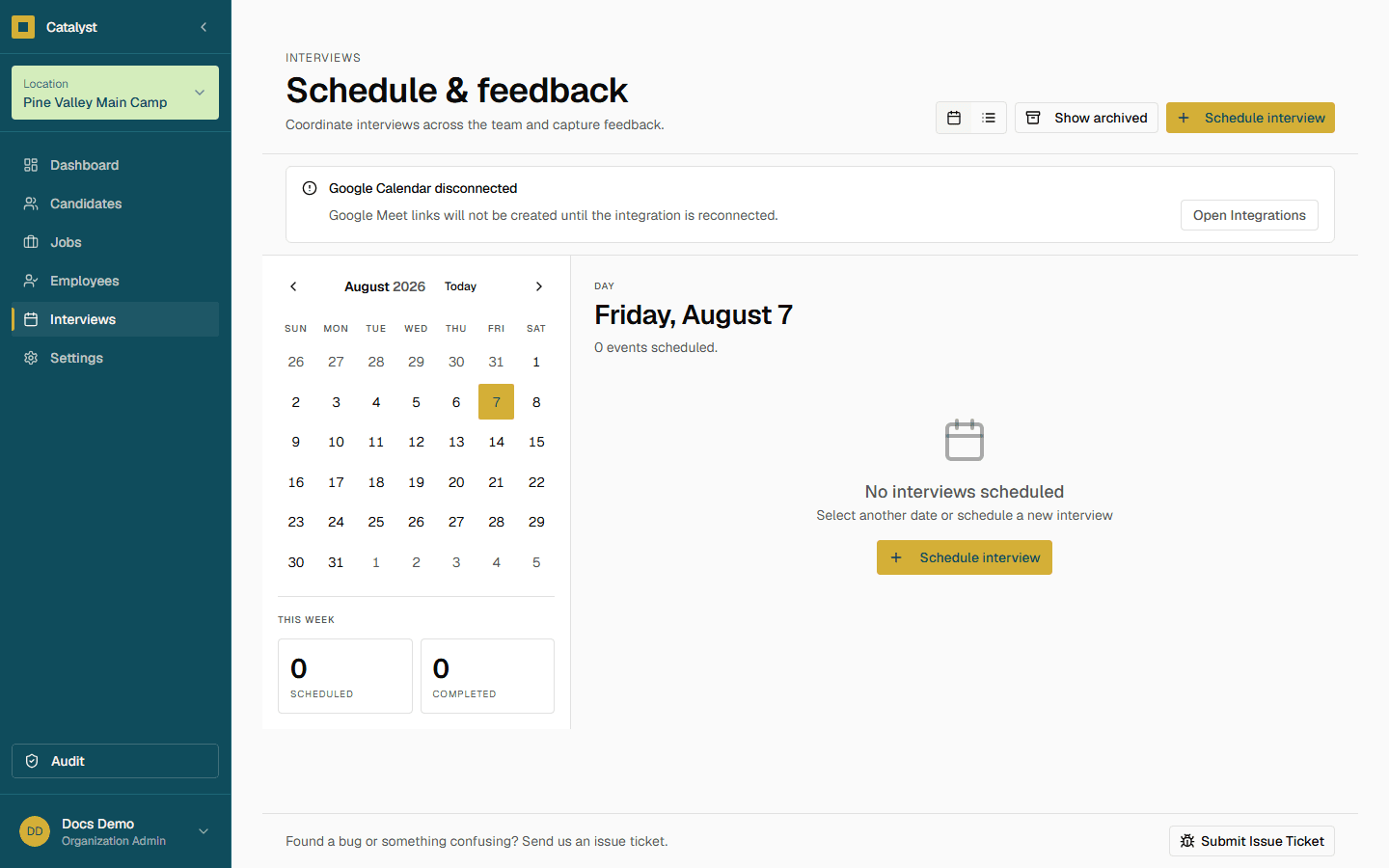
Connect Google Calendar
Go to Settings → Integrations to sync interview scheduling with a shared calendar.
- 1Find the Google Calendar row.
- 2Click Connect and sign in with the Google account that owns the calendar.
- 3Once connected, choose the Default Calendar that receives new interview events.
- 4Click Save calendar.
The row shows a Connected badge and the connected account's email once set up. Use Reconnect or Disconnect from the same row if you need to change accounts.
Note
Scorecards & approvals
Every interview (except reference checks) ends with a scorecard: a 1–5 rating on each of your rubric criteria, plus a verdict — Approve, Not a fit, or Another round. Rate only the criteria you can judge; the verdict is the required part.
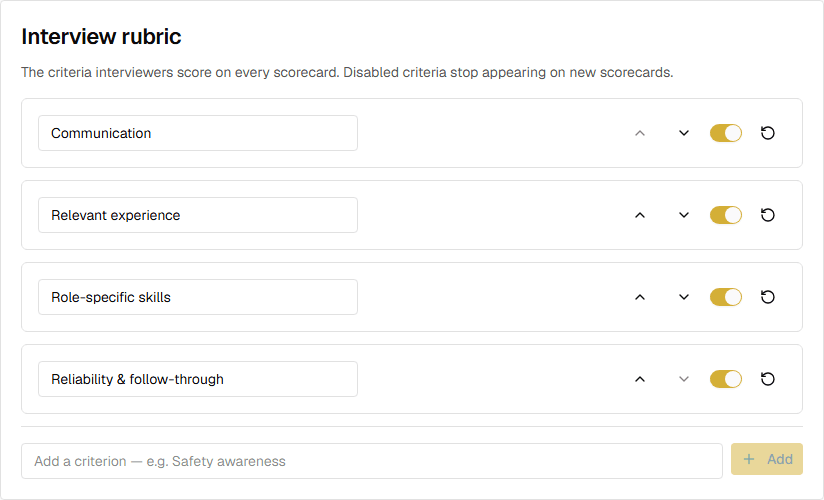
Configure the criteria in Settings → Interview Rubric. Four criteria are enabled out of the box — rename, disable, reorder, or add your own. A job that needs different criteria can override the rubric from its Interview Rubric menu item on the Jobs page.
The same settings page sets how many Approve verdicts a candidate needs before anyone can create an offer for them (one by default; set 0 to turn the requirement off). Reference checks never count toward approvals. The offer screen shows the running count, and organization admins can override a blocked offer by entering a reason, which is recorded on the offer and in the audit log.
Exporting data
Click Export in the page header to download interviews as a CSV, matching the list view's current filters. If you're on the calendar view, the export still downloads the list view's filtered rows.